
The desktop app
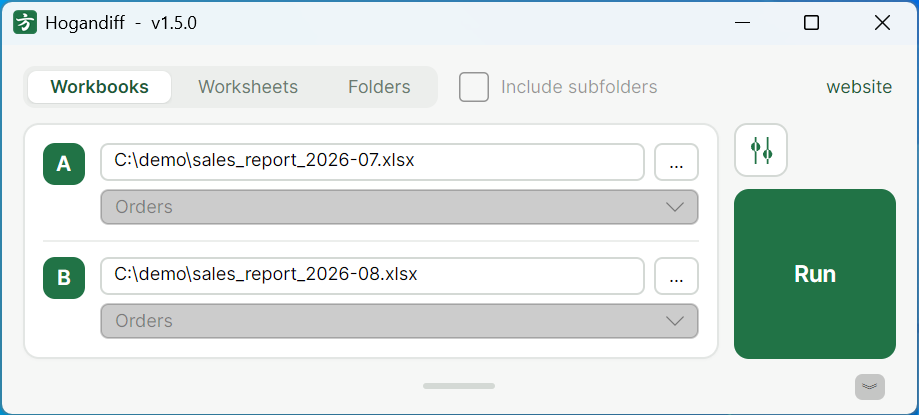
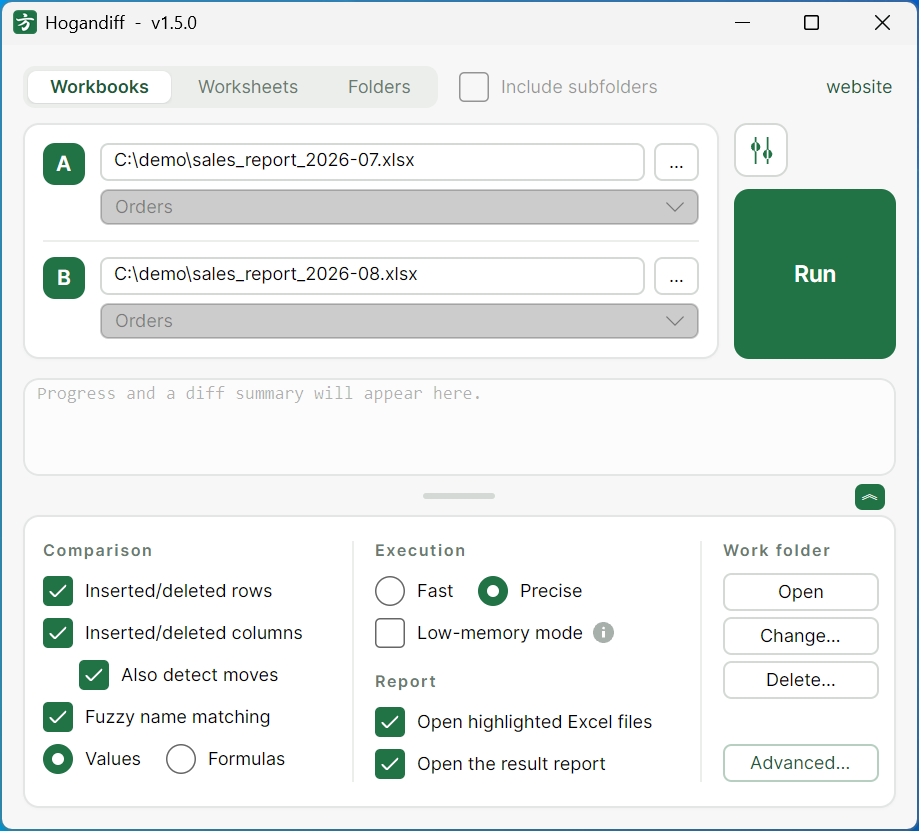
Pick two workbooks — or two folders — and press the button. The highlighted files and the report open automatically when the comparison finishes.
Hogandiff compares two Excel workbooks and highlights every changed cell. There is no key column to configure — and no key row either: inserted, deleted and moved rows and columns are detected automatically, and you get back color-highlighted copies of both files plus a comparison report.
Windows / macOS · .xlsx .xlsm .xls · free · no installer
Built for the dense, grid-like spreadsheets that are used as documents rather than databases.
Hogandiff works out which rows and which columns correspond to each other, at the same time. Insert a column and a text diff reports the whole line as changed; here it is absorbed, and you see only the cells that really differ. Neither axis needs a key — no key column, no key row — and when the guess is not what you meant, you can weight or pin rows and columns by hand.
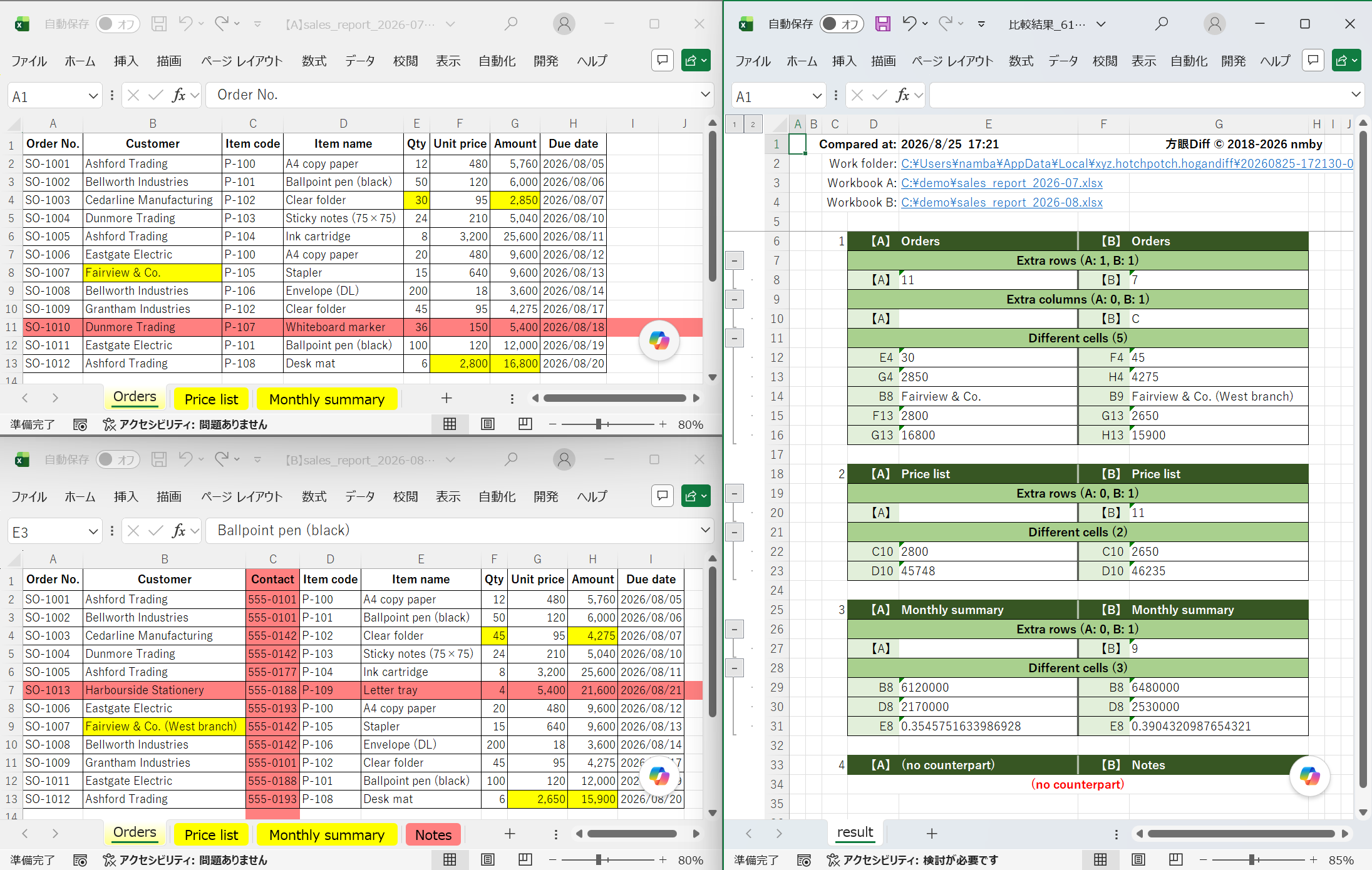
You get copies of both workbooks with the changed cells colored in, plus a separate report workbook that lists the differences sheet by sheet. Nothing to learn: the result is an ordinary spreadsheet.
.xlsx, .xlsm and legacy .xls are all supported, including comparing one format against the other. Password-protected workbooks can be compared from the desktop app and through the MCP server.
The comparison runs entirely on your computer; the contents of your files are never sent anywhere. Microsoft Excel is not required to run a comparison, and there is no runtime to install.
The same comparison engine, in the shape that fits the job.
Pick two workbooks — or two folders — and press the button. The highlighted files and the report open automatically when the comparison finishes.
hogandiff old.xlsx new.xlsx compares without opening a window and reports the outcome as an exit code (0 no differences, 1 differences found), so it drops into scripts and Git difftool setups.
A Model Context Protocol server is bundled, so assistants such as Claude can run the comparison and talk you through what changed — including re-running it with different weights when you ask. The desktop app can register it with Claude Desktop and Claude Code for you.
Two workbooks in, two colored workbooks and a report out.
The current version is v1.6.0. It is free for personal and commercial use. There is no installer — unzip the folder and run it.
方眼Diff.exe (Windows) or 方眼Diff.app (macOS) from inside that folder. The command-line tool (hogandiff) and the MCP server (hogandiff-mcp) sit next to it.The Windows executables are not code-signed, so launching them may show “Windows protected your PC”. Choose More info → Run anyway to continue. To stop the warning from appearing on every launch, right-click the zip before unzipping it, open Properties, tick Unblock at the bottom of the General tab, and click OK. Antivirus scanning still applies as usual. On macOS the app is notarized by Apple, so it starts without that step.
On first launch the app asks you to accept the license agreement, and asks separately whether you are willing to send error reports. That second checkbox starts out ticked; clear it there if you would rather not, or change your mind later in the settings dialog. Error reports never contain the contents of the files you compare.
Hogandiff deliberately keeps its scope narrow, and it is better to know the edges before you download it:
.xlsb format is not supported, and neither are sheets that are not worksheets (chart sheets, dialog sheets).The application itself speaks English, Japanese and Chinese. It picks a language from your operating system on first launch, and you can change it later in the settings dialog (or with --lang on the command line).
The rest of this site, the detailed documentation, the license agreement and the contact form are available in Japanese only. This page is the English summary of them. If that is a problem for you, please let me know through thecontact form (in Japanese) — written English is welcome even though the form itself is not translated.
Hogandiff is developed by one person (nmby) in Japan. The Japanese pages carry the full documentation: product overview (in Japanese),how to use it (in Japanese) andrelease notes (in Japanese).